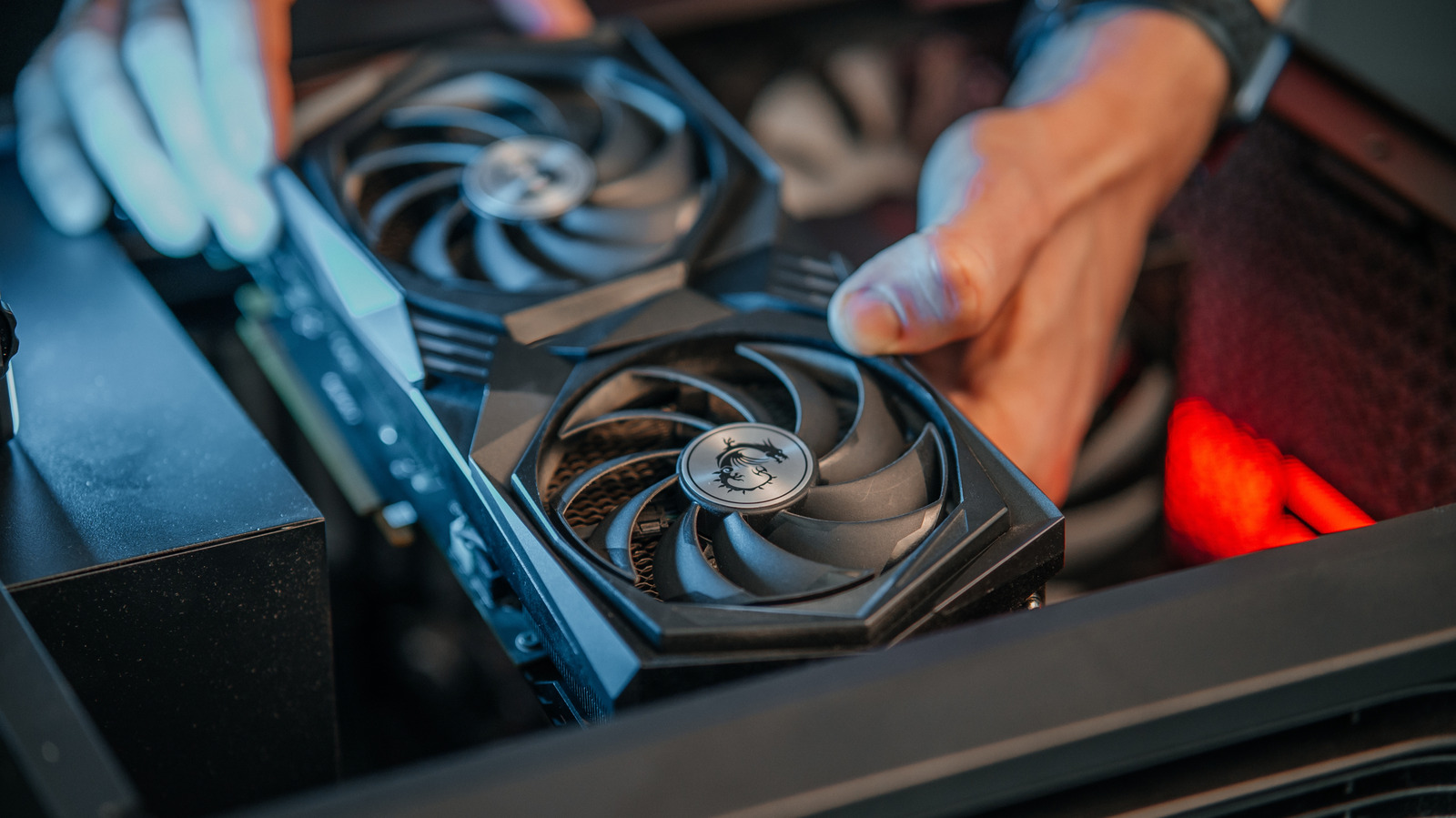
Finding your GPU takes a few built-in Windows tools and no screwdriver.
In case you didn't know, your Windows computer can house two graphics processors, and the one powering up your display isn't always the one keeping those games running. Some laptops juggle integrated graphics for everyday use and a dedicated NVIDIA, AMD or Intel GPU for heavier workloads. An Intel or AMD sticker on your system doesn't always tell you the whole story.
Confirming a game's requirements, troubleshooting system performance or deciding if your PC could use an upgrade first needs a proper look at the internals. Thanks to rising GPU prices and AI data centers putting pressure on memory supplies, PC builders are already bearing the brunt of it. It's best to know how capable your current setup is before you burn a hole in your wallet.
The good part is that Windows can easily identify your graphics hardware for you without needing any additional software or taking a screwdriver to your PC. While Task Manager is the fastest way to go about it, there are a couple of other built-in tools you can use when the details are hidden in fine print.
Windows' Task Manager can do more than just flag which apps and services are eating up your computer's resources.