📰 Newspapers

How to block a device from your home network

How to block a device from your home network

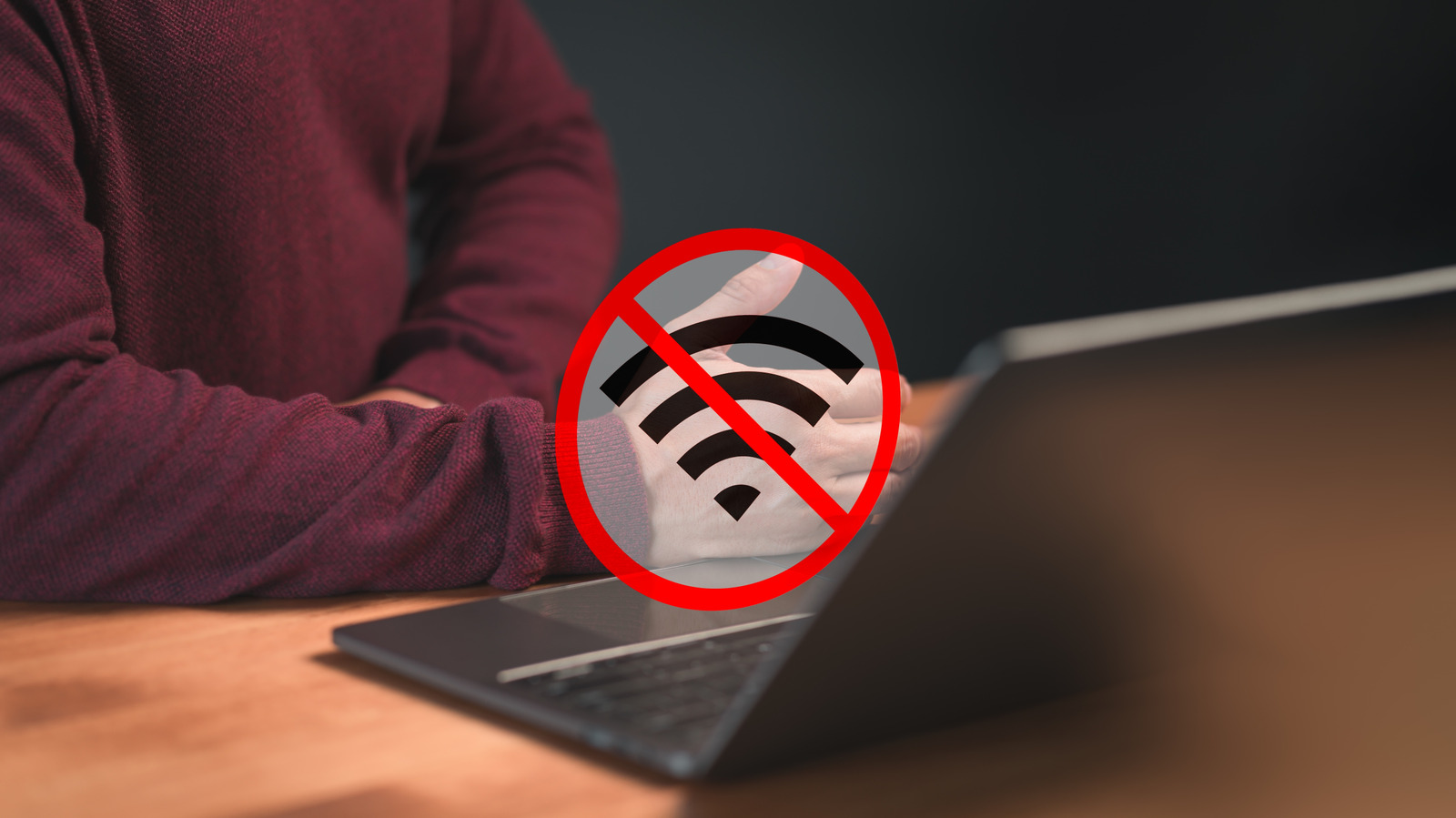
Did a strange device just connect to your home Wi-Fi? Don't panic. Here is how to identify exactly what it is and securely block it from your network.

Lock down a home network by tracking down MAC addresses, tweaking your router’s access controls and kicking unwanted users off your Wi-Fi.

It's easy to get rattled when you see a new, strange device connect to your network for the first time. Most gateways and routers, provided by your ISP or purchased separately, come with companion apps that send you notifications when new devices connect to your network. Unfortunately, those new devices aren't always properly identified. For instance, a friend may connect with an Android device, (and if they are having trouble, you can suggest they clear their Android cache) but your app may identify it as a string of letters and numbers, or just "unknown." Not very helpful. This is because of safety and privacy features on the connecting devices, but how are you supposed to know what it is and when to block it from your network?

Start with your router's app. Keep in mind that every app is different, so there's no universal method for walking you through this. Look for terms like "connected devices" or "attached devices" to open a list of all connected, recently connected and unknown devices.


In brief

Lock down a home network by tracking down MAC addresses, tweaking your router’s access controls and kicking unwanted users off your Wi-Fi. Most gateways and routers, provided by your ISP or purchased separately, come with companion apps that send you notifications when new devices connect to your network. Look for terms like "connected devices" or "attached devices" to open a list of all connected, recently connected and unknown devices.

This is the opening of the story, shared with credit to Engadget. The rest of the report — with every detail — continues on the publisher’s website.

Continue reading at Engadget ↗

Cookie settings

Choose which cookies we may use. You can change this at any time from Cookie settings in the footer. Details of each cookie are in the Cookie Policy.

Strictly necessary

Needed for sign-in, security, payments and remembering these choices. Always on.

Preferences

Remember settings such as dark mode.

Analytics & performance

Help us count visits, understand which pages, devices and countries our readers use, and measure how well the site performs – anonymous and aggregated.

Advertising & marketing

Lets advertising partners show and personalise adverts, measure impressions, clicks and visits, prevent ad fraud and pay us – this is how the free site is funded.

🔔 News notifications

Get headlines from NewsHub on this device — even when the site is closed.

You can switch this off at any time. Works on Android, Windows, Mac and Linux browsers; on iPhone/iPad add the site to your Home Screen first.