📰 Newspapers

Your PC's USB port can charge your phone, even when it's turned off — Here's how

Your PC's USB port can charge your phone, even when it's turned off — Here's how

Yes, a powered-off PC can still charge your phone, but only if the right feature is on. Here's what to check before you shut down and walk away.

Your USB ports might have a hidden "Always On" mode that charges your phone with the PC shut down.

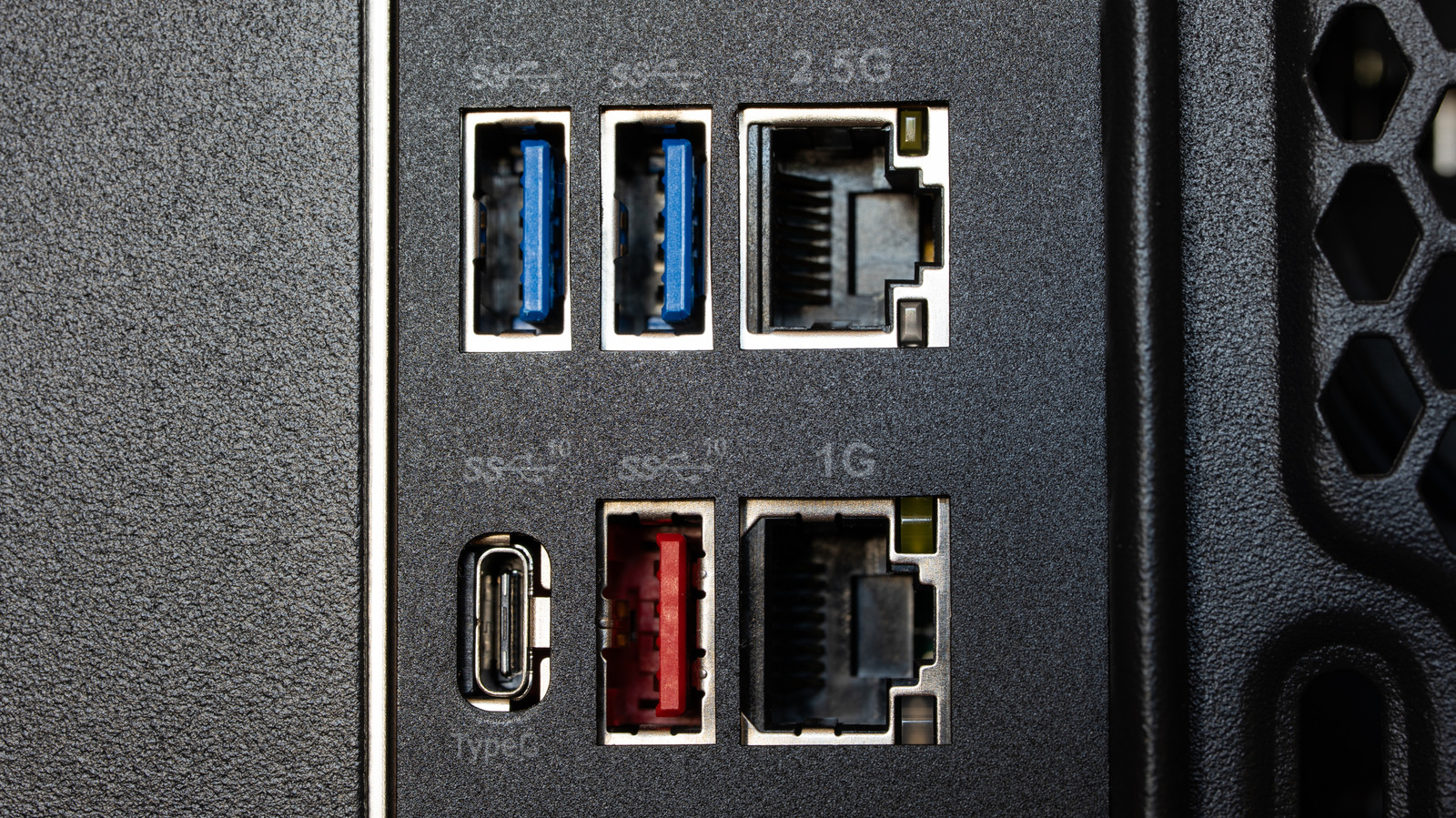
Almost all PC USB ports supply enough current to charge a device, but not all continue to do so when the PC is shut down. This convenient feature can also be confusing, since each brand tends to have its own terminology. For example, Lenovo calls it an "Always On" port while Dell uses the term PowerShare. Others stick with icon labels, like a battery symbol or a lightning bolt. The best way to know for sure is to dig into your PC's manual, confirm the markings and learn how to enable it.

Depending on the system, USB standby power might be on by default or be part of an energy-saving setting that cuts power when the PC is off. Your desktop or motherboard documentation should have this information. Fortunately, testing the feature is fairly simple: plug your phone in, turn the PC off and see if your phone continues charging.

If it stops charging, it's safe to assume the setting is off, which you can rectify in the BIOS or UEFI on most Windows PCs. (If your PC never supported the feature, changing settings won't help.) Restart the PC and press the key the startup screen tells you to (usually F2…

In brief

Your USB ports might have a hidden "Always On" mode that charges your phone with the PC shut down. For example, Lenovo calls it an "Always On" port while Dell uses the term PowerShare. Your desktop or motherboard documentation should have this information. Fortunately, testing the feature is fairly simple: plug your phone in, turn the PC off and see if your phone continues charging.

This is the opening of the story, shared with credit to Engadget. The rest of the report — with every detail — continues on the publisher’s website.

Continue reading at Engadget ↗

Cookie settings

Choose which cookies we may use. You can change this at any time from Cookie settings in the footer. Details of each cookie are in the Cookie Policy.

Strictly necessary

Needed for sign-in, security, payments and remembering these choices. Always on.

Preferences

Remember settings such as dark mode.

Analytics & performance

Help us count visits, understand which pages, devices and countries our readers use, and measure how well the site performs – anonymous and aggregated.

Advertising & marketing

Lets advertising partners show and personalise adverts, measure impressions, clicks and visits, prevent ad fraud and pay us – this is how the free site is funded.

🔔 News notifications

Get headlines from NewsHub on this device — even when the site is closed.

You can switch this off at any time. Works on Android, Windows, Mac and Linux browsers; on iPhone/iPad add the site to your Home Screen first.