📰 Newspapers

Why the iOS 27 MiniPlayer is a game changer for CarPlay users

Why the iOS 27 MiniPlayer is a game changer for CarPlay users

CarPlay's Now Playing screen has never been the most elegant solution, and iOS 27 has thankfully brought improvements to it.

It replaces one icon in CarPlay's media apps and works on every iPhone that runs iOS 27.

Have you ever been scrolling through a playlist in CarPlay when a song you've skipped a bunch of times begins playing again? Before, you'd have to tap into CarPlay's Now Playing screen, hit Skip and then return to the list you were looking at. But since iOS 27 dropped in mid-September, that skip button has been moved to a new MiniPlayer you'll find in the top-right corner of CarPlay's audio apps.

It replaces the old icon with album art and playback controls, turning that old three-tap detour into a single one. Any app that already uses CarPlay's Now Playing screen should automatically have the new MiniPlayer, and it runs on all iPhones that support iOS 27. That's more than can be said for the two biggest CarPlay additions in iOS 27: Siri AI needs a recent iPhone to work, and video apps in CarPlay require individual automakers to implement them.

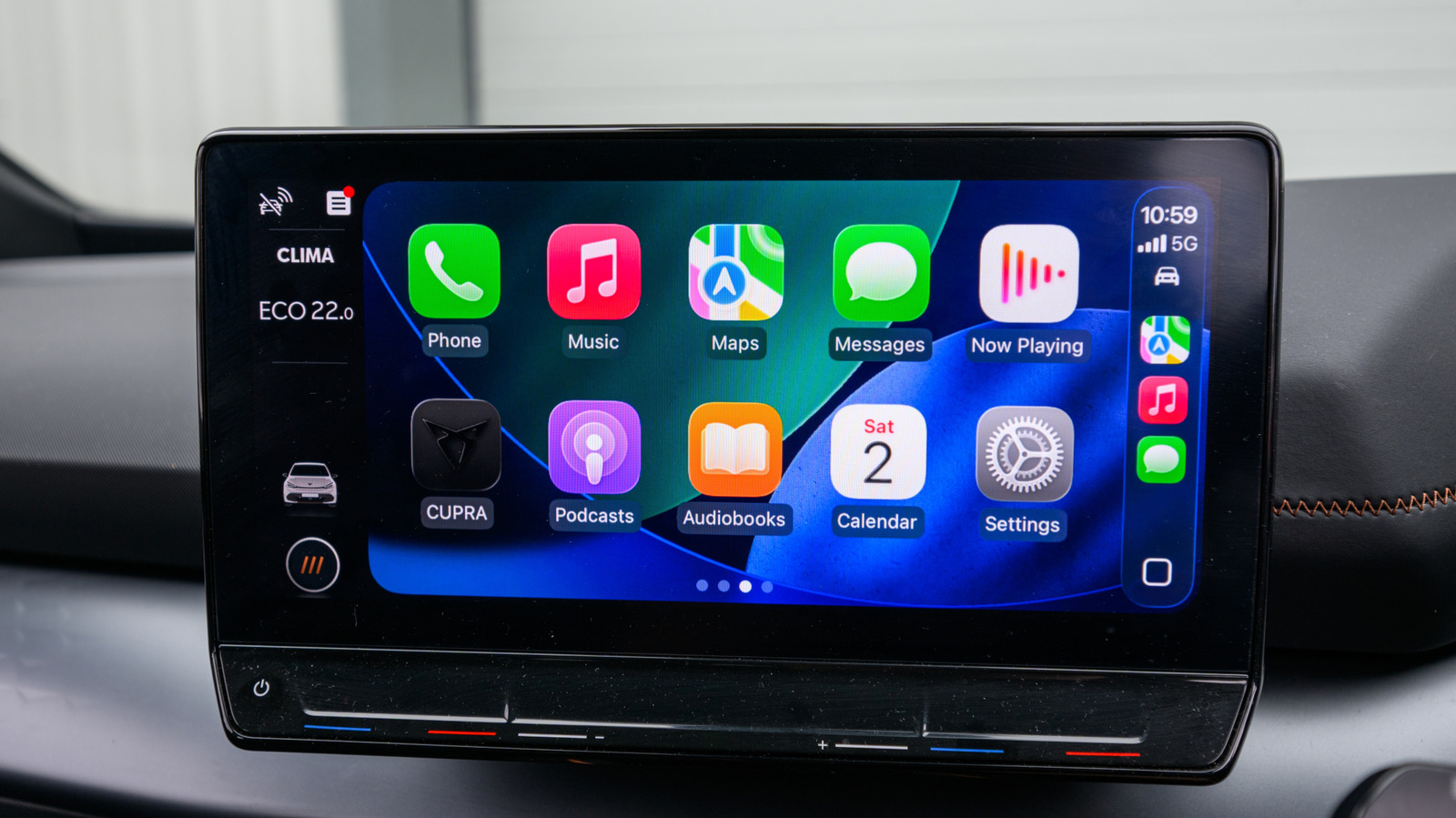
Until iOS 27, the top-right corner of a CarPlay audio app showed a small waveform icon, and tapping it opened the Now Playing screen. With the latest update, the new MiniPlayer replaces that with the artwork for whatever song's playing, along with the play/pause and skip buttons.

In brief

It replaces one icon in CarPlay's media apps and works on every iPhone that runs iOS 27. Any app that already uses CarPlay's Now Playing screen should automatically have the new MiniPlayer, and it runs on all iPhones that support iOS 27. Until iOS 27, the top-right corner of a CarPlay audio app showed a small waveform icon, and tapping it opened the Now Playing screen.

This is the opening of the story, shared with credit to Engadget. The rest of the report — with every detail — continues on the publisher’s website.

Continue reading at Engadget ↗

Cookie settings

Choose which cookies we may use. You can change this at any time from Cookie settings in the footer. Details of each cookie are in the Cookie Policy.

Strictly necessary

Needed for sign-in, security, payments and remembering these choices. Always on.

Preferences

Remember settings such as dark mode.

Analytics & performance

Help us count visits, understand which pages, devices and countries our readers use, and measure how well the site performs – anonymous and aggregated.

Advertising & marketing

Lets advertising partners show and personalise adverts, measure impressions, clicks and visits, prevent ad fraud and pay us – this is how the free site is funded.

🔔 News notifications

Get headlines from NewsHub on this device — even when the site is closed.

You can switch this off at any time. Works on Android, Windows, Mac and Linux browsers; on iPhone/iPad add the site to your Home Screen first.