📰 Newspapers

How to check which iOS version your iPhone is running

How to check which iOS version your iPhone is running

Not every version of iOS is a home run, but keeping your iPhone up to date is generally a good idea anyway. Here's how to check whether yours is.

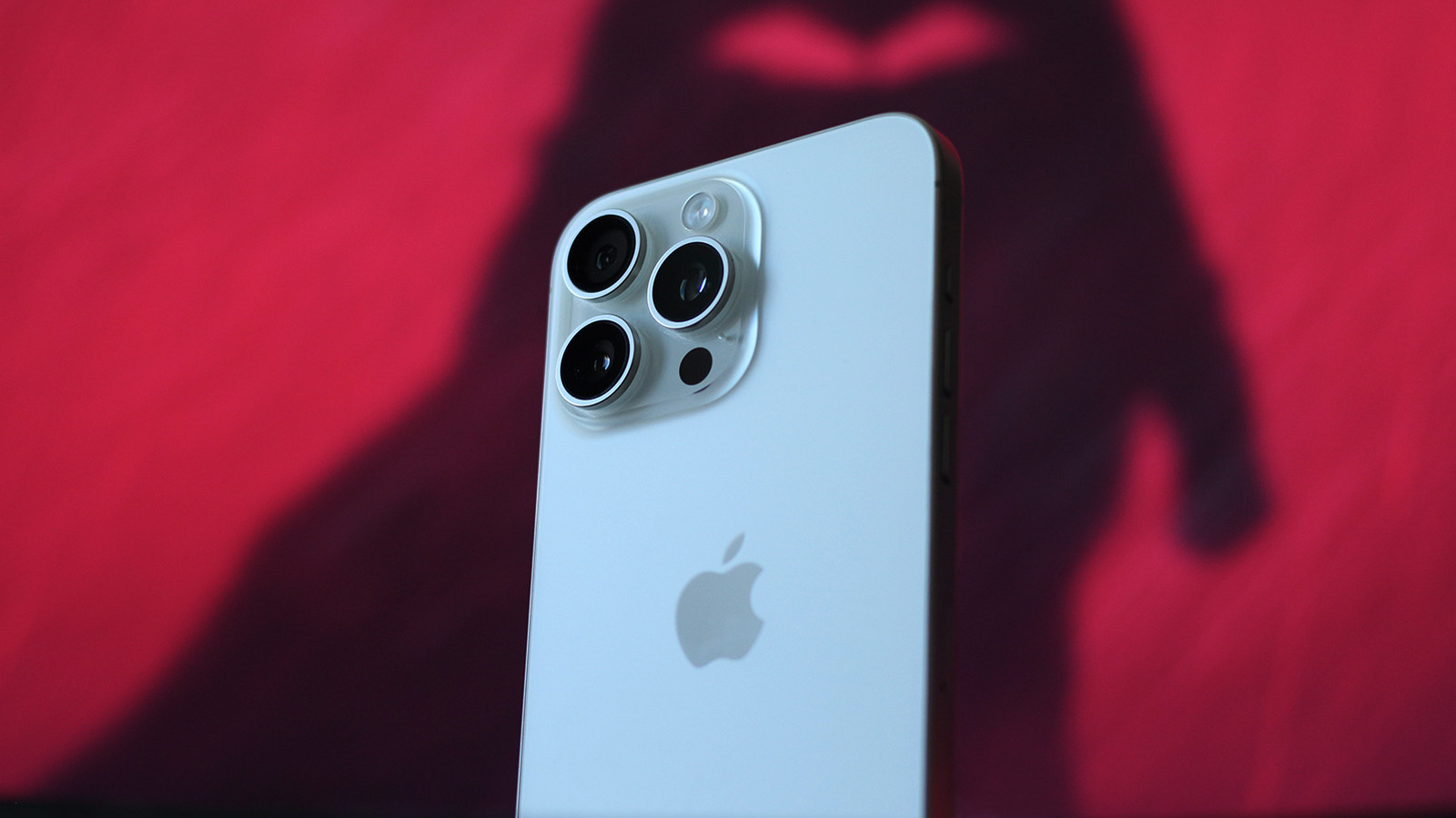
Apple's products may not always offer the best bang for your buck — the company still sells an iPhone with a 60Hz display for $700, for example — but they often make up for it with meticulously designed hardware and well-thought-out ecosystem features. iPhones also tend to last a long time, with Apple's commitment to long-term software support a major factor. Take the iPhone 11, for instance. Released in 2019, it can still run the latest version of iOS more than seven years later. If you're rocking a similarly aged iPhone and want to check the OS version you're running, open Settings and navigate to General > About > iOS Version.

Your iPhone should notify you when a new iOS version becomes available, and installation takes only a few minutes once the update finishes downloading. To check for updates manually, navigate to Settings > General > Software Update. This page also shows the current software version and will display a Download and Install button if an update is available. If a major iOS release, like iOS 27, is available, you'll see it in a separate Also Available section at the bottom.

Once you've downloaded the update, tap Update Now, enter your passcode and accept the terms and conditions. Your iPhone will reboot automatically to finish installing the update.


In brief

Apple's products may not always offer the best bang for your buck — the company still sells an iPhone with a 60Hz display for $700, for example — but they often make up for it with meticulously designed hardware and well-thought-out ecosystem features. iPhones also tend to last a long time, with Apple's commitment to long-term software support a major factor.

This is the opening of the story, shared with credit to Engadget. The rest of the report — with every detail — continues on the publisher’s website.

Continue reading at Engadget ↗

Cookie settings

Choose which cookies we may use. You can change this at any time from Cookie settings in the footer. Details of each cookie are in the Cookie Policy.

Strictly necessary

Needed for sign-in, security, payments and remembering these choices. Always on.

Preferences

Remember settings such as dark mode.

Analytics & performance

Help us count visits, understand which pages, devices and countries our readers use, and measure how well the site performs – anonymous and aggregated.

Advertising & marketing

Lets advertising partners show and personalise adverts, measure impressions, clicks and visits, prevent ad fraud and pay us – this is how the free site is funded.

🔔 News notifications

Get headlines from NewsHub on this device — even when the site is closed.

You can switch this off at any time. Works on Android, Windows, Mac and Linux browsers; on iPhone/iPad add the site to your Home Screen first.