📰 Newspapers

One cable mistake could be killing your desktop PC's gaming performance

One cable mistake could be killing your desktop PC's gaming performance

Plugging your monitor into the motherboard instead of your dedicated GPU can ruin gaming performance. Here's how to check your ports and get your frames back.

Your monitor might be connected to the motherboard instead of your graphics card, and the fix takes only a cable swap.

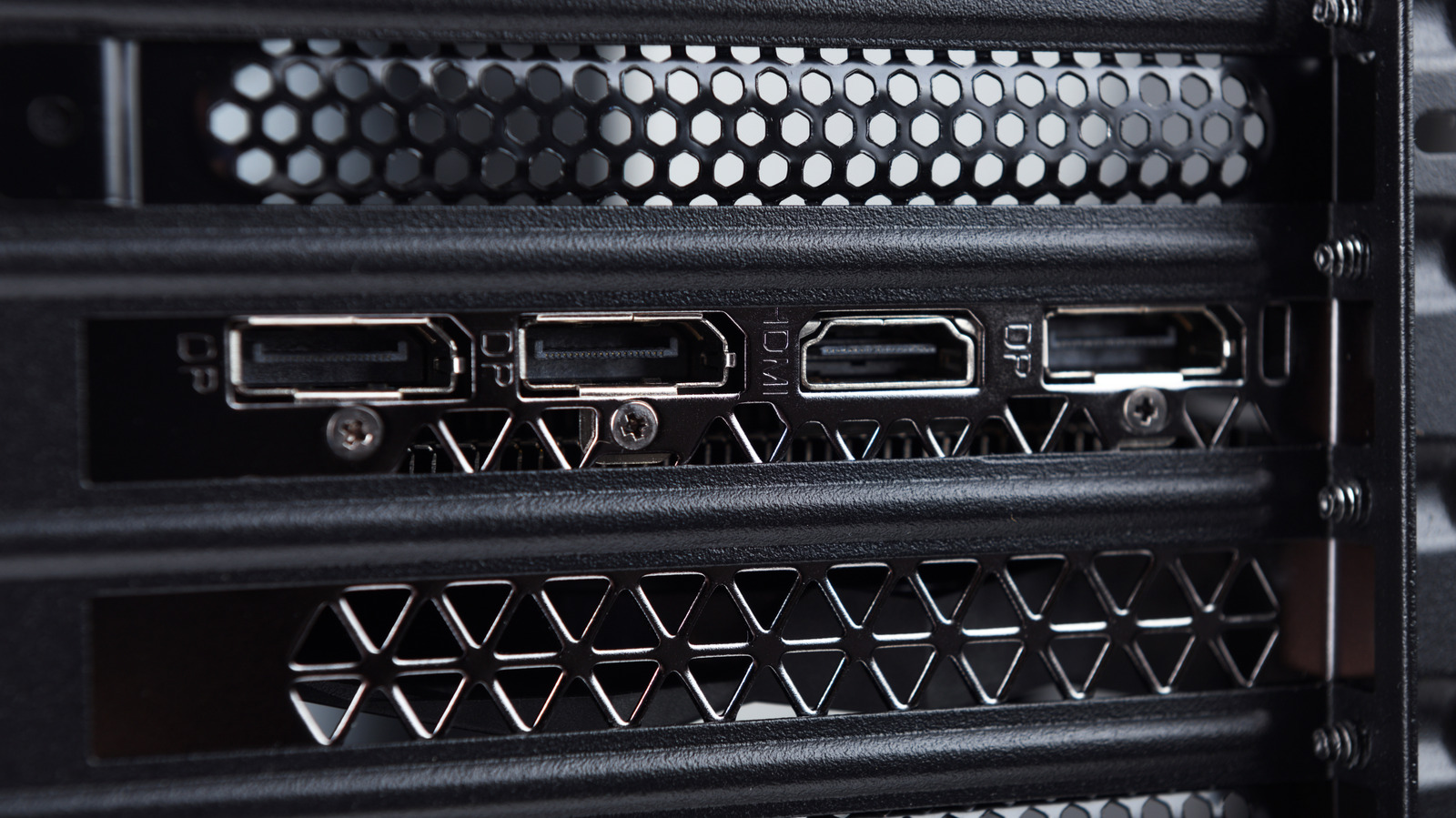
You may have a great graphics card in your gaming desktop and still be disappointed with its performance because of where the monitor is plugged in. Many PCs have HDMI, DisplayPort and USB-C monitor connections in two places: on the motherboard and on the dedicated graphics card. The same cable can fit either set of ports, which isn't particularly helpful.

If your desktop has a dedicated graphics card, the monitor should normally connect to that card's outputs. You may end up with less capable integrated graphics or a blank screen if you use a motherboard port. Instead of assuming that the problem is your hardware, start by inspecting the back of the case. The motherboard's video outputs typically use the graphics integrated into the CPU (if it has any), instead of the dedicated graphics card in a PCIe slot.

Integrated graphics are suitable for basic tasks and less demanding games, but typically cannot compete with your dedicated graphics card — even if you know how to boost GPU performance without buying new hardware. If Windows runs your game on integrated graphics instead, you're missing out on the performance of your dedicated GPU.

In brief

Your monitor might be connected to the motherboard instead of your graphics card, and the fix takes only a cable swap. If your desktop has a dedicated graphics card, the monitor should normally connect to that card's outputs. If Windows runs your game on integrated graphics instead, you're missing out on the performance of your dedicated GPU.
This is the opening of the story, shared with credit to Engadget. The rest of the report — with every detail — continues on the publisher’s website.

Continue reading at Engadget ↗

Cookie settings

Choose which cookies we may use. You can change this at any time from Cookie settings in the footer. Details of each cookie are in the Cookie Policy.

Strictly necessary

Needed for sign-in, security, payments and remembering these choices. Always on.

Preferences

Remember settings such as dark mode.

Analytics & performance

Help us count visits, understand which pages, devices and countries our readers use, and measure how well the site performs – anonymous and aggregated.

Advertising & marketing

Lets advertising partners show and personalise adverts, measure impressions, clicks and visits, prevent ad fraud and pay us – this is how the free site is funded.

🔔 News notifications

Get headlines from NewsHub on this device — even when the site is closed.

You can switch this off at any time. Works on Android, Windows, Mac and Linux browsers; on iPhone/iPad add the site to your Home Screen first.