📰 Newspapers

How to get warnings about speed cameras in Apple CarPlay

How to get warnings about speed cameras in Apple CarPlay

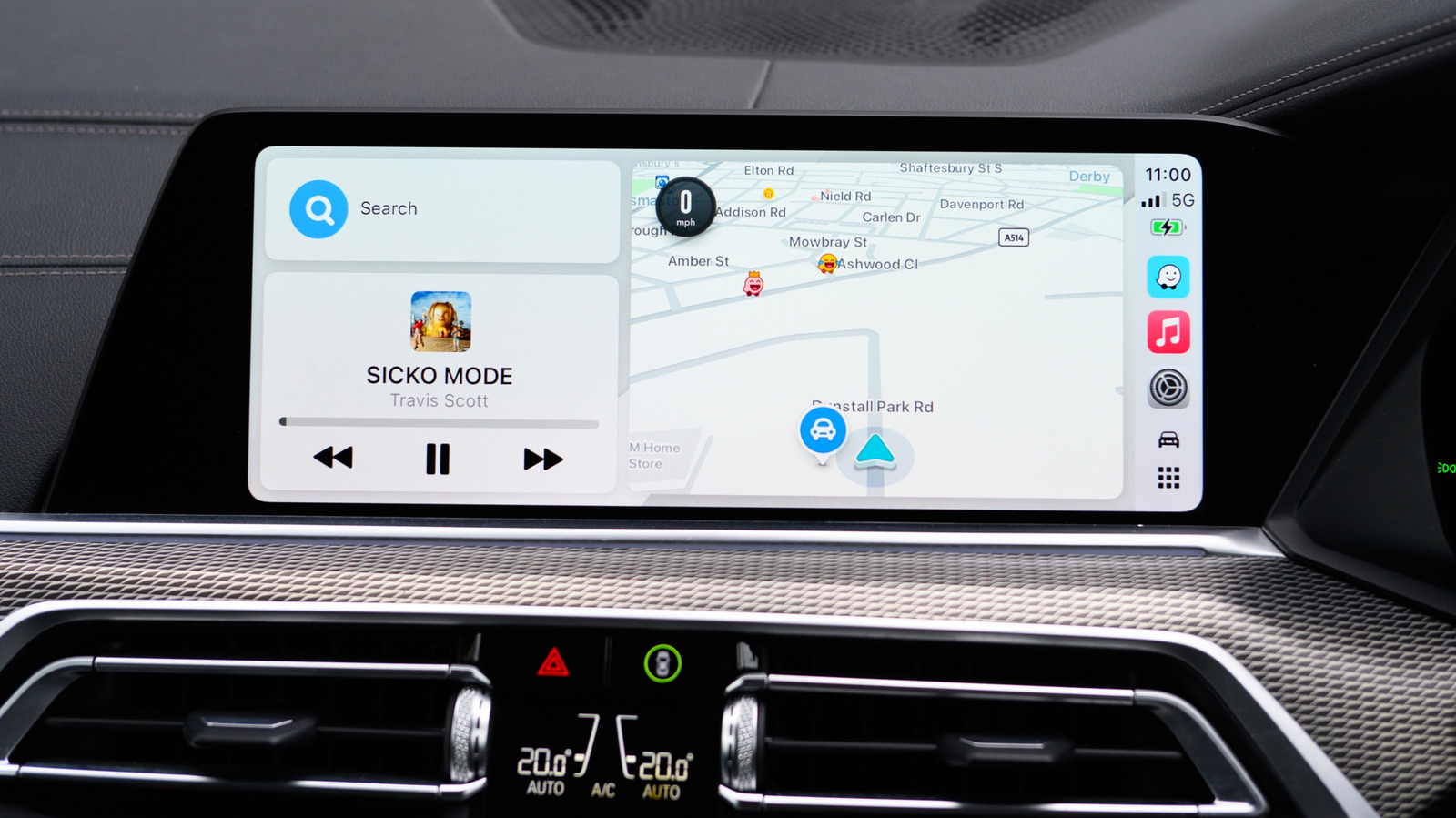
Whether you use Apple Maps, Google Maps, or Waze in CarPlay, ensure these settings are on to receive warnings about nearby speed cameras.

CarPlay is just the messenger, while your navigation app does all the hard work.

With all the rage and controversy over Flock cameras, speed cameras (or speed traps) have taken a back seat. Most of us have to deal with speed cameras (though they're banned in some states and limited in others), and Apple CarPlay is one way to handle them. While CarPlay itself doesn't send out speed camera warnings, alerts can be turned on for whichever navigation app you use. It stands to reason that Apple CarPlay users default to Apple Maps, but there are other, equally useful alternatives like Waze and Google Maps. There's always a caveat, however. Regardless of the nav app you use, mobile speed traps, by definition, move around a lot. Unless someone reports the new position on a given app, you won't get a warning.

Mobile speed detectors (in some form or another) have been around since the first speeding arrest in the US in 1899. A NYC taxicab driver named Jacob German was caught going 12 mph in an Electrobat (nearly the speed of light back then) in an 8 mph zone. The mobile units in those days were police officers on bicycles.

In brief

CarPlay is just the messenger, while your navigation app does all the hard work. With all the rage and controversy over Flock cameras, speed cameras (or speed traps) have taken a back seat. While CarPlay itself doesn't send out speed camera warnings, alerts can be turned on for whichever navigation app you use. It stands to reason that Apple CarPlay users default to Apple Maps, but there are other, equally useful alternatives like Waze and Google Maps.

This is the opening of the story, shared with credit to Engadget. The rest of the report — with every detail — continues on the publisher’s website.

Continue reading at Engadget ↗

Cookie settings

Choose which cookies we may use. You can change this at any time from Cookie settings in the footer. Details of each cookie are in the Cookie Policy.

Strictly necessary

Needed for sign-in, security, payments and remembering these choices. Always on.

Preferences

Remember settings such as dark mode.

Analytics & performance

Help us count visits, understand which pages, devices and countries our readers use, and measure how well the site performs – anonymous and aggregated.

Advertising & marketing

Lets advertising partners show and personalise adverts, measure impressions, clicks and visits, prevent ad fraud and pay us – this is how the free site is funded.

🔔 News notifications

Get headlines from NewsHub on this device — even when the site is closed.

You can switch this off at any time. Works on Android, Windows, Mac and Linux browsers; on iPhone/iPad add the site to your Home Screen first.