📰 Newspapers

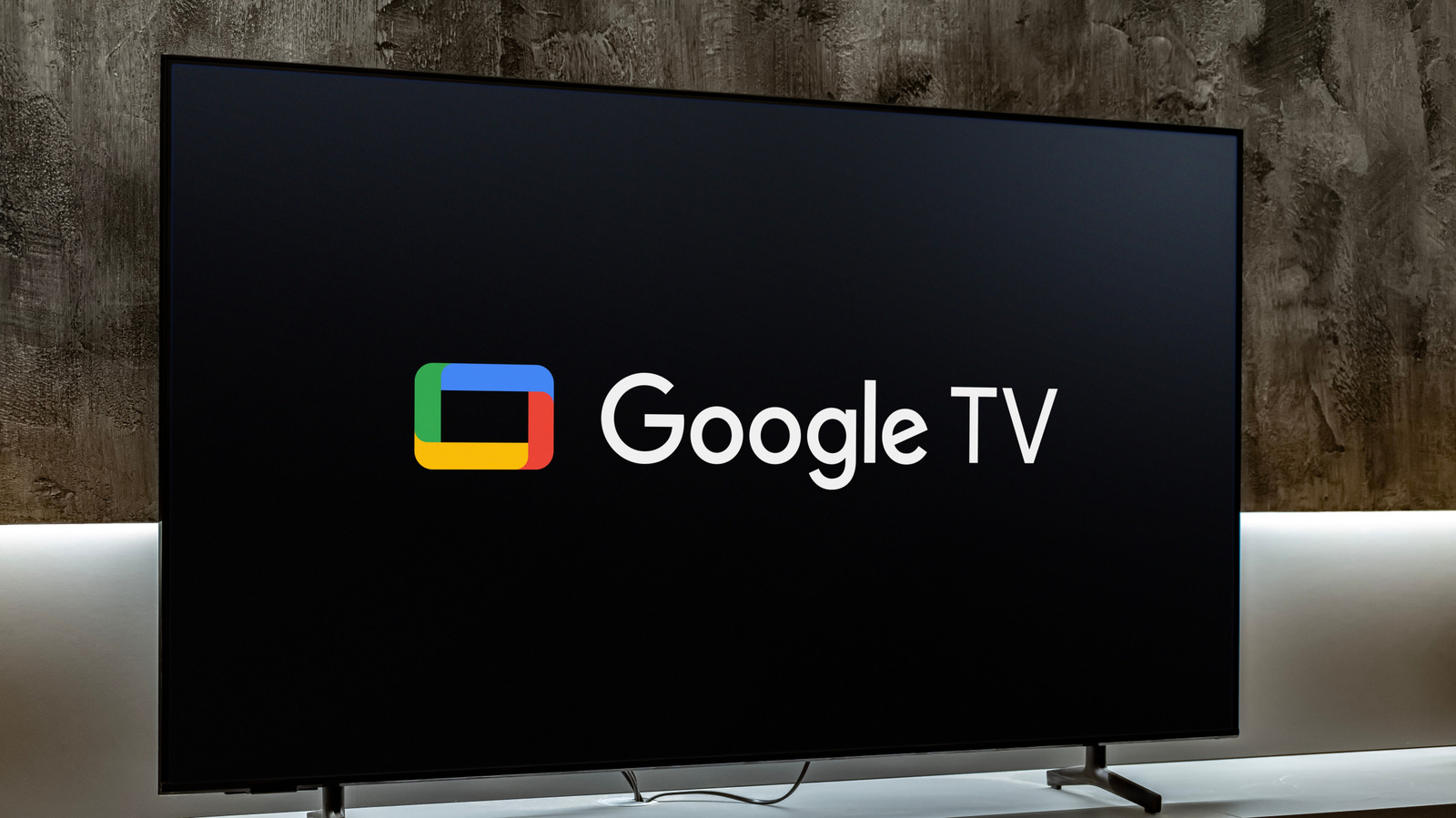
How to clear your cache on Google TV

How to clear your cache on Google TV

Clearing your Google TV's cache isn't a one-size-fits-all solution, but it's a useful first step if you're having performance issues or glitches.

If you're experiencing slow performance or other issues with your Google TV, you may have heard about clearing the cache. Caches generally help Android devices such as Google TVs run more smoothly by storing data — such as TV show thumbnails — that may need to be accessed quickly later. While this may not be an issue on a device with plenty of storage, very few Google TV devices have more than the bare minimum there. The Google TV Streamer that replaced the Chromecast has 32GB of space, the bare minimum for an Android device, making cache management all the more important.

Even though Google TV manages app caches automatically, they can still get too large, especially if you have a lot of apps installed or store large video files on the TV or streaming box. App caches can also bloat or get corrupted, causing issues including slow performance, app crashes and frustrating system glitches.

Thankfully, Android makes it easy to clear the cache, whether for individual apps or all installed apps, through its settings menu. If your Google TV has become sluggish or glitchy over time, clearing the cache is a troubleshooting step you shouldn't skip.

There are two ways to clear your Google TV cache: system-wide or per-app.

In brief

If you're experiencing slow performance or other issues with your Google TV, you may have heard about clearing the cache. Thankfully, Android makes it easy to clear the cache, whether for individual apps or all installed apps, through its settings menu. If your Google TV has become sluggish or glitchy over time, clearing the cache is a troubleshooting step you shouldn't skip. There are two ways to clear your Google TV cache: system-wide or per-app.

This is the opening of the story, shared with credit to Engadget. The rest of the report — with every detail — continues on the publisher’s website.

Continue reading at Engadget ↗

Cookie settings

Choose which cookies we may use. You can change this at any time from Cookie settings in the footer. Details of each cookie are in the Cookie Policy.

Strictly necessary

Needed for sign-in, security, payments and remembering these choices. Always on.

Preferences

Remember settings such as dark mode.

Analytics & performance

Help us count visits, understand which pages, devices and countries our readers use, and measure how well the site performs – anonymous and aggregated.

Advertising & marketing

Lets advertising partners show and personalise adverts, measure impressions, clicks and visits, prevent ad fraud and pay us – this is how the free site is funded.

🔔 News notifications

Get headlines from NewsHub on this device — even when the site is closed.

You can switch this off at any time. Works on Android, Windows, Mac and Linux browsers; on iPhone/iPad add the site to your Home Screen first.