📰 Newspapers

Why AirDrop isn't working on your Apple devices (and how to fix it)

Why AirDrop isn't working on your Apple devices (and how to fix it)

AirDrop is supposed to be a simple tool, but when it trips up, you can fix it by toggling a few settings.

Most AirDrop issues boil down to Wi-Fi, Bluetooth and who is allowed to send to you.

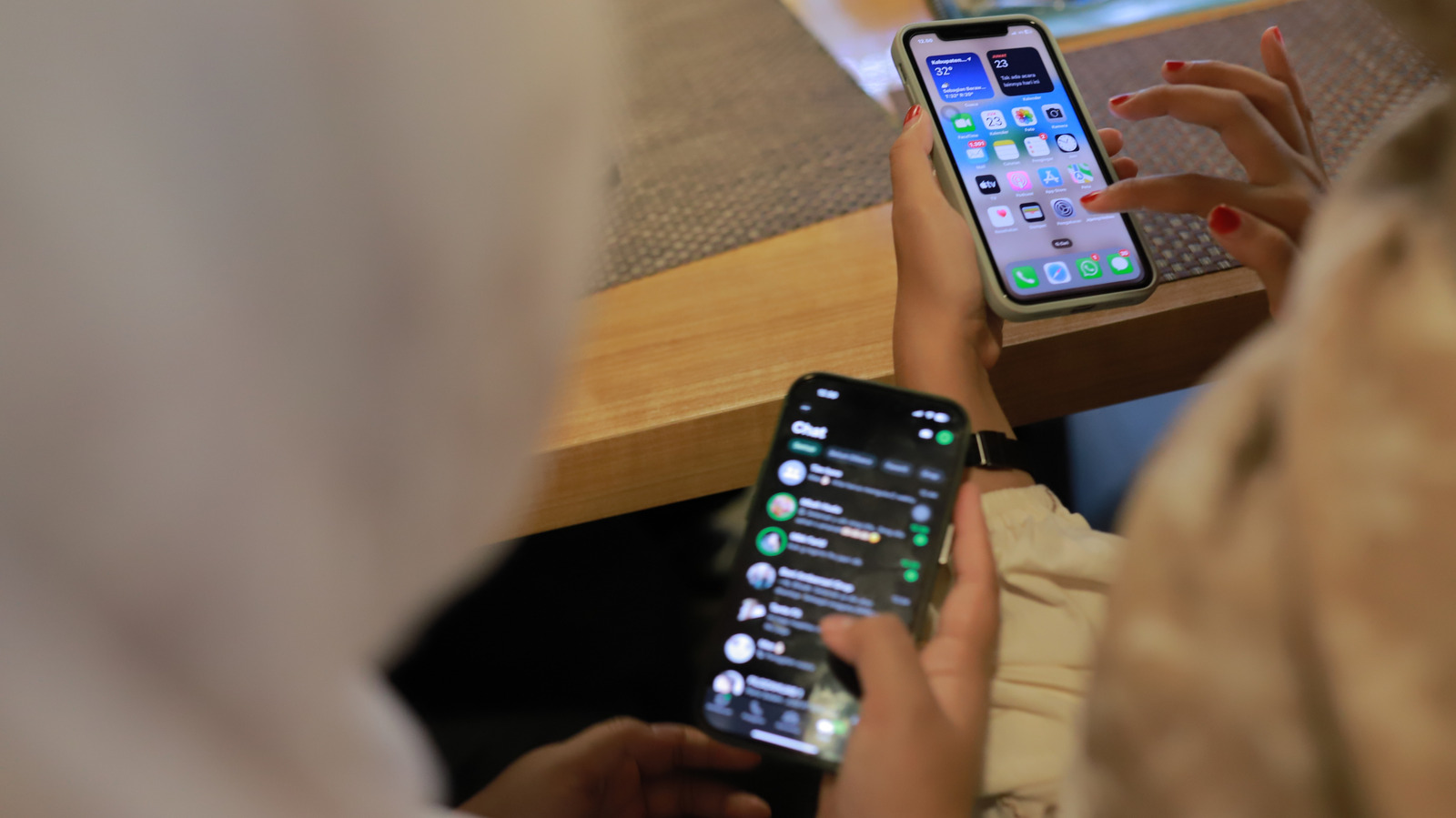
Like most technology problems, when AirDrop quits being its normal, dependable self, you should start with the basics. AirDrop needs both Wi-Fi and Bluetooth turned on with a reliable signal, and the two devices need to be within 30 feet of each other. Cellular data can also help when needed. If your connections seem flaky, toggle them off and back on (using Control Center) before proceeding. Make sure both devices are awake, too: a locked iPhone or iPad won't show up as a potential recipient for the other device.

If you're new to the Apple ecosystem, remember that AirDrop only works between Apple devices, so your Windows PC will be left out. On the bright side, Google's been adding AirDrop support to more Android phones, though Apple's instructions don't include anything other than Apple devices. If you have a supported Android device, the peer-to-peer sharing tool you're looking for is Quick Share, and it should be compatible with AirDrop.

If everything seems to be in order and AirDrop still isn't working, it's time for the reboot that no one has the patience for: turn off both devices, fire them back up again and give it another go.
In brief

Most AirDrop issues boil down to Wi-Fi, Bluetooth and who is allowed to send to you. If you're new to the Apple ecosystem, remember that AirDrop only works between Apple devices, so your Windows PC will be left out. On the bright side, Google's been adding AirDrop support to more Android phones, though Apple's instructions don't include anything other than Apple devices.

This is the opening of the story, shared with credit to Engadget. The rest of the report — with every detail — continues on the publisher’s website.

Continue reading at Engadget ↗

Cookie settings

Choose which cookies we may use. You can change this at any time from Cookie settings in the footer. Details of each cookie are in the Cookie Policy.

Strictly necessary

Needed for sign-in, security, payments and remembering these choices. Always on.

Preferences

Remember settings such as dark mode.

Analytics & performance

Help us count visits, understand which pages, devices and countries our readers use, and measure how well the site performs – anonymous and aggregated.

Advertising & marketing

Lets advertising partners show and personalise adverts, measure impressions, clicks and visits, prevent ad fraud and pay us – this is how the free site is funded.

🔔 News notifications

Get headlines from NewsHub on this device — even when the site is closed.

You can switch this off at any time. Works on Android, Windows, Mac and Linux browsers; on iPhone/iPad add the site to your Home Screen first.