📰 Newspapers

Apple Passwords vs. Google Password Manager: How are they different?

Apple Passwords vs. Google Password Manager: How are they different?

See where Apple Passwords and Google Password Manager differ across iOS and macOS, and figure out which password manager makes more sense for your devices.

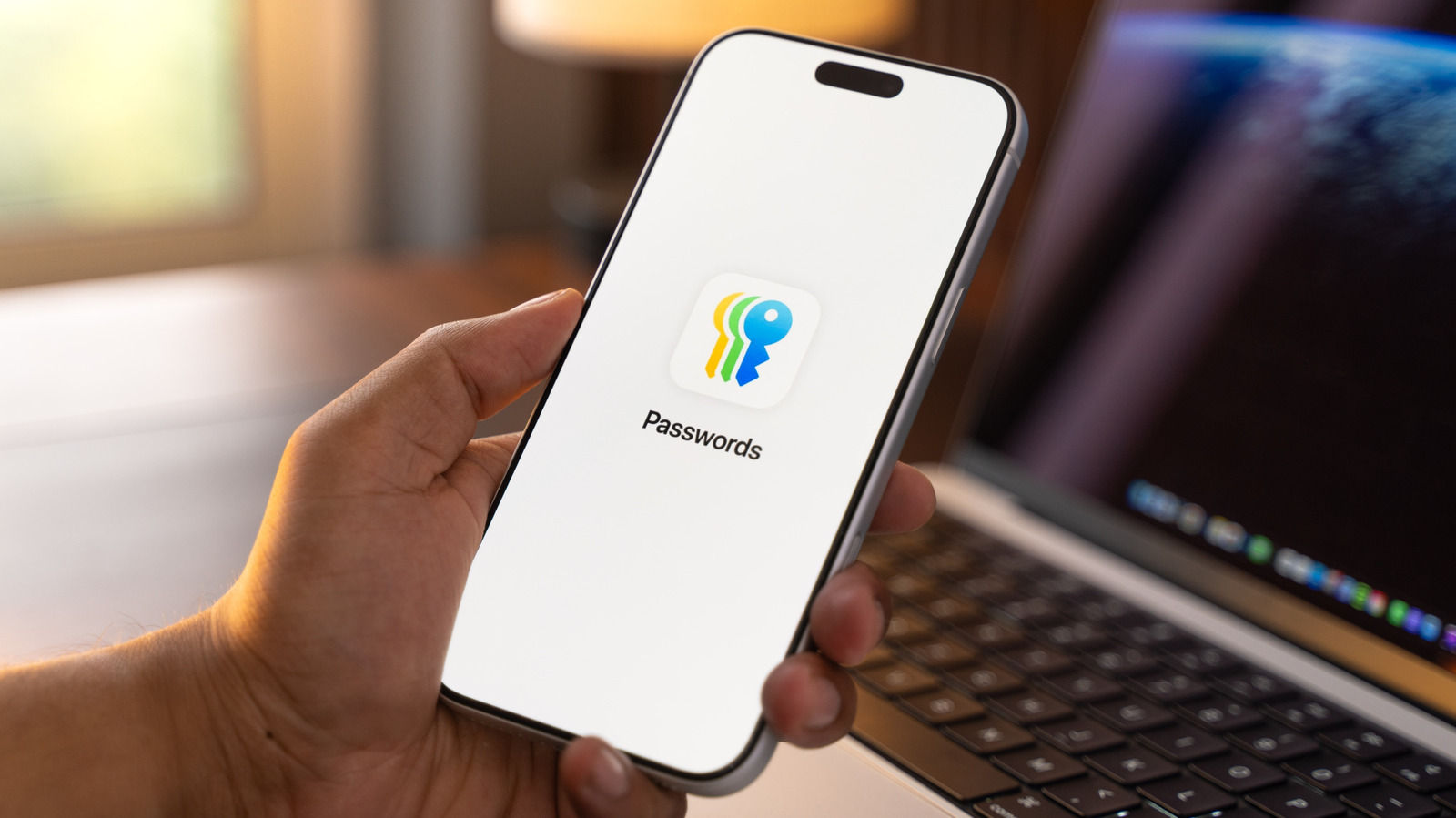
Apple Passwords and Google Password Manager are both free and both run on your iPhone, but each one takes care of your logins differently.

In the grand scheme of things, Apple Passwords and Google Password Manager are very similar, at least in terms of aesthetics and workflow. Both feature a long, single, scrollable column of usernames associated with their respective sites or apps. Clicking or tapping one opens its username and password. The obvious difference is that Google Password Manager is a webpage or built into Chrome (passwords.google.com), while using the Apple Passwords app means opening a standalone app on your iPhone, iPad or Mac.

On an iOS device, Google Password Manager is built into Chrome, and your logins are stored in your Google account. The latter is convenient because it lets you access your passwords regardless of the browser. Just go to Google, tap your profile in the top right corner > Manage Your Google Account > Security & sign-in > Password Manager. It works exactly the same on macOS, regardless of browser. If you want the full Google Password capability on an iOS device, go to Settings > General > AutoFill & Passwords > toggle on Chrome.

There's a bit of a trade-off between the two as well.

In brief

Apple Passwords and Google Password Manager are both free and both run on your iPhone, but each one takes care of your logins differently. On an iOS device, Google Password Manager is built into Chrome, and your logins are stored in your Google account. Just go to Google, tap your profile in the top right corner > Manage Your Google Account > Security & sign-in > Password Manager.

This is the opening of the story, shared with credit to Engadget. The rest of the report — with every detail — continues on the publisher’s website.

Continue reading at Engadget ↗

Cookie settings

Choose which cookies we may use. You can change this at any time from Cookie settings in the footer. Details of each cookie are in the Cookie Policy.

Strictly necessary

Needed for sign-in, security, payments and remembering these choices. Always on.

Preferences

Remember settings such as dark mode.

Analytics & performance

Help us count visits, understand which pages, devices and countries our readers use, and measure how well the site performs – anonymous and aggregated.

Advertising & marketing

Lets advertising partners show and personalise adverts, measure impressions, clicks and visits, prevent ad fraud and pay us – this is how the free site is funded.

🔔 News notifications

Get headlines from NewsHub on this device — even when the site is closed.

You can switch this off at any time. Works on Android, Windows, Mac and Linux browsers; on iPhone/iPad add the site to your Home Screen first.