📰 Newspapers

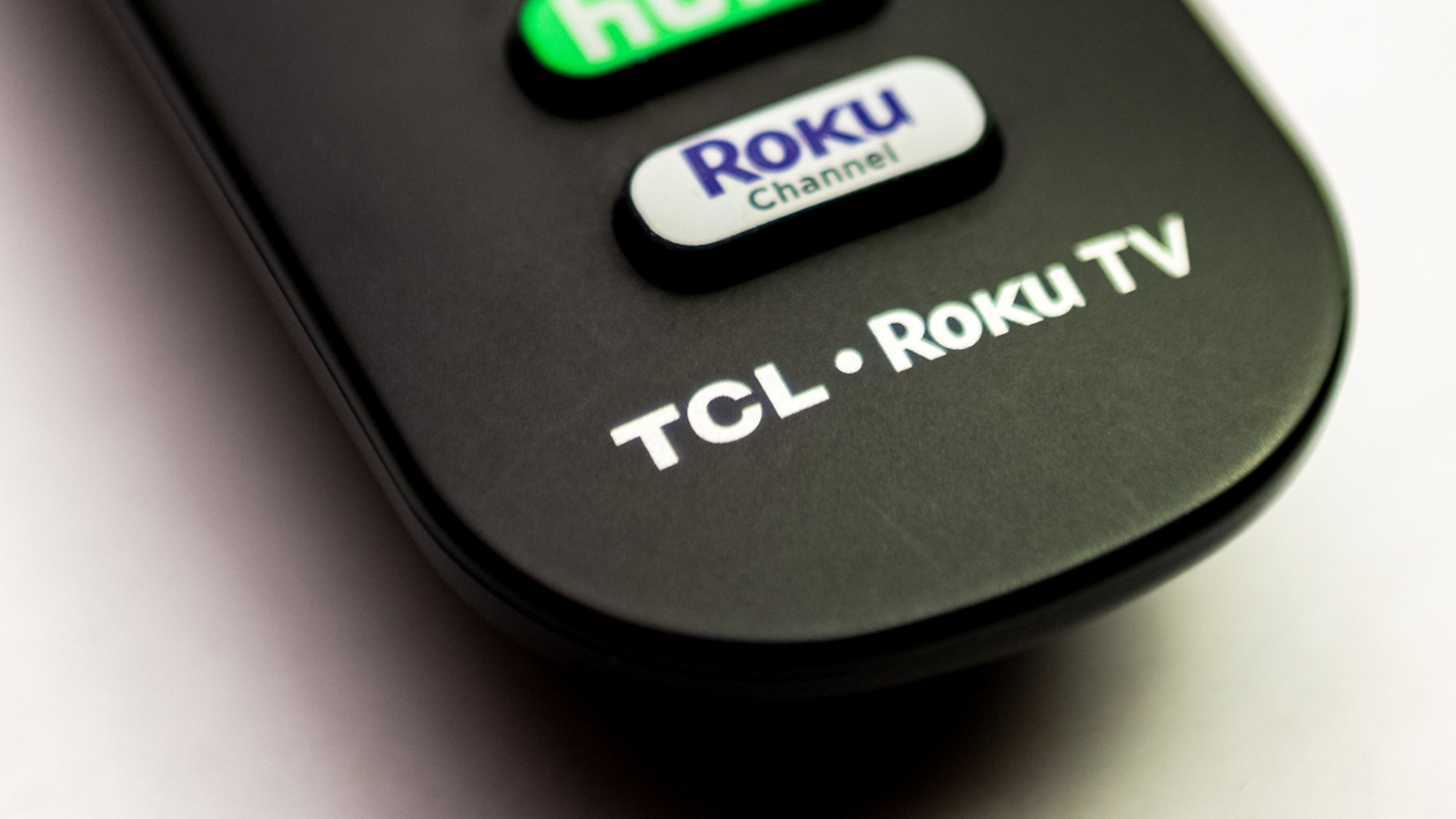
What the green flashing light on your Roku remote is telling you

What the green flashing light on your Roku remote is telling you

Find out what your Roku remote's green light means, when it's harmless and when it signals a problem, plus what to do if your remote isn't working as it should.

A remote that won't cooperate can put your streaming plans on hold. Here's how to work out what's wrong and get back to the content you love.

Regardless of what you think of Fox's takeover, Roku is still an undeniable force in smart TVs. The company's products are an easy choice when looking for the best streaming devices, and of course a number of TVs now ship with Roku OS built in, most notably models from TCL and Hisense. Roku is the main game in town for brands that are not using Google TV, Fire TV or their own proprietary software.

One of the reasons for the platform's popularity is its simplicity. That said, there are times when the platform can be a little obtuse, mysterious blinking lights on the remote being a prime example. It's easy to assume that means a problem — but what, exactly?

If you're dealing with a flashing green LED on your Roku remote, the fix could be very straightforward, simply requiring fresh batteries or a recharge, depending on the model. In some circumstances, however, you may need to do more or replace your remote entirely. Hopefully you've already got the Roku app on your phone as a backup, which can save you in a pinch when your remote is on the fritz.


In brief

A remote that won't cooperate can put your streaming plans on hold. If you're dealing with a flashing green LED on your Roku remote, the fix could be very straightforward, simply requiring fresh batteries or a recharge, depending on the model. In some circumstances, however, you may need to do more or replace your remote entirely. Hopefully you've already got the Roku app on your phone as a backup, which can save you in a pinch when your remote is on the fritz.

This is the opening of the story, shared with credit to Engadget. The rest of the report — with every detail — continues on the publisher’s website.

Continue reading at Engadget ↗

Cookie settings

Choose which cookies we may use. You can change this at any time from Cookie settings in the footer. Details of each cookie are in the Cookie Policy.

Strictly necessary

Needed for sign-in, security, payments and remembering these choices. Always on.

Preferences

Remember settings such as dark mode.

Analytics & performance

Help us count visits, understand which pages, devices and countries our readers use, and measure how well the site performs – anonymous and aggregated.

Advertising & marketing

Lets advertising partners show and personalise adverts, measure impressions, clicks and visits, prevent ad fraud and pay us – this is how the free site is funded.

🔔 News notifications

Get headlines from NewsHub on this device — even when the site is closed.

You can switch this off at any time. Works on Android, Windows, Mac and Linux browsers; on iPhone/iPad add the site to your Home Screen first.